Required access: Manager or Admin · Paid plan · At least one site
A performance budget defines pass/fail thresholds for a site on one device strategy (mobile or desktop). When a PageSpeed run exceeds those limits, Watcher can raise an alert. Viewers can see budgets but cannot create or edit them.
Run a baseline first — Run a test and read results — so thresholds match real scores, not aspirational defaults alone.
Open Budgets
- Sign in at
/admin. - Open Performance → Budgets.
- Click Create (New Budget).
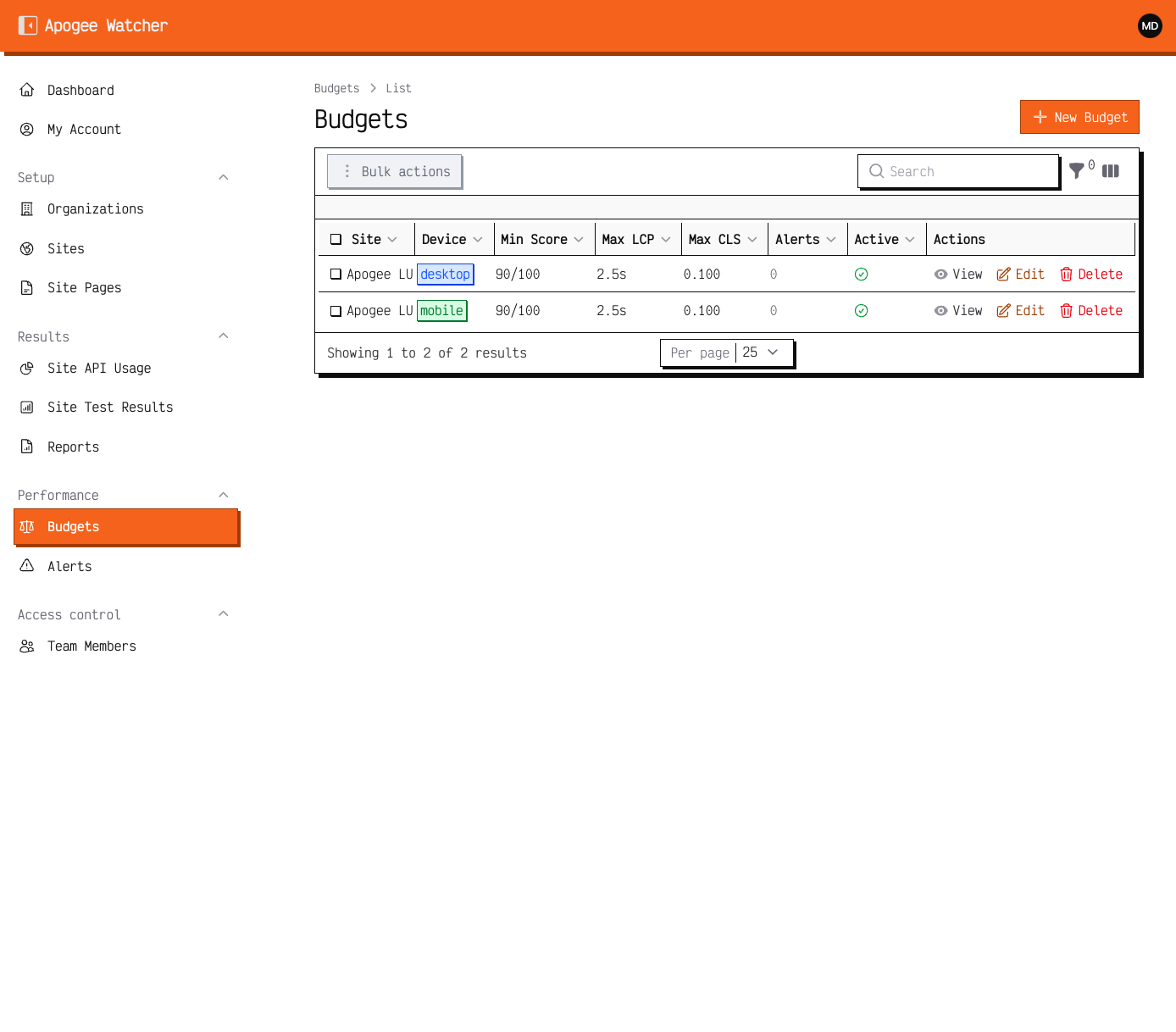 Budgets under Performance — empty list until you create the first threshold set.
Fill in the budget
- Select the Site.
- Choose Device: Mobile or Desktop (create a second budget if you monitor both).
- Set thresholds you care about. Common fields include:
- Performance score minimum (for example 90)
- LCP maximum (seconds)
- INP maximum (seconds)
- CLS maximum
- Supporting caps such as FCP, TBT, and Speed Index when offered
- Leave the budget Active so violations are evaluated after tests.
- Choose an alert channel your plan allows (email on most plans; Slack or webhook on higher tiers).
- Save.
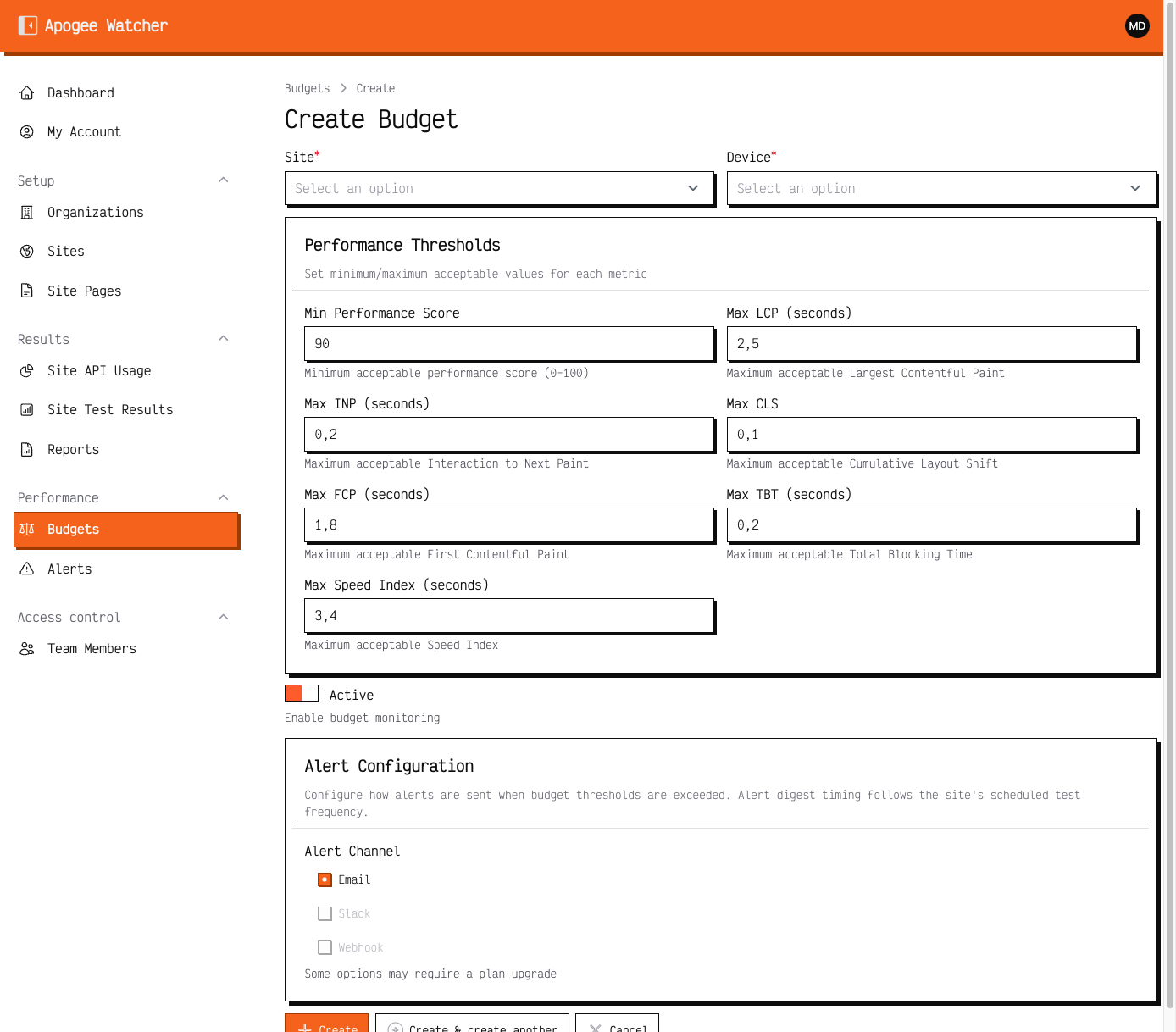 Create Budget — site, device, score/vitals thresholds, and alert channel.
Budgets are per site and strategy, not per individual page URL. Violations are still reported with the pages that failed.
After you save
- Confirm the new row appears on Budgets.
- Ensure priority pages have the matching strategy enabled — Mobile and desktop strategies.
- Continue with Email alerts and digests so the team knows who receives email.
Set mobile and desktop budgets separately. Most regressions show on one strategy only.
Edit or deactivate
- Open the budget from the list.
- Adjust thresholds or turn Active off to pause evaluation without deleting history.
- Save.
Only Manager and Admin can edit or delete budgets.