Every person you invite to Apogee Watcher has a role inside each organisation they belong to. Roles control what they can view and change in the customer panel (/admin). They do not grant access to other organisations unless that person is also a member there.
This page is the canonical permission reference. Use it before you invite someone, or when you wonder why a button is missing. For step-by-step invite instructions, see Invite a team member.
Sysadmin is an internal operations role. It is not assigned to customers and is not covered here.
The three customer roles
| Role | Typical use |
|---|---|
| Admin | Organisation owner: billing contact, membership, and full configuration within plan limits |
| Manager | Delivery lead: sites, pages, budgets, tests, and viewer invites — not org billing or admin promotion |
| Viewer | Read-only: dashboards, test results, reports, and alerts — no configuration |
The same login can hold different roles in different organisations. For example, you might be Admin in your agency workspace and Viewer in a client workspace.
Keep one or two Admins per organisation for billing and membership. Use Managers for weekly monitoring work. Add Viewers for clients and internal reviewers who should not change settings.
Permission keys (defaults)
Watcher stores fine-grained flags on each team member. Unless an administrator has set custom overrides (rare), role defaults apply:
| Permission | Admin | Manager | Viewer |
|---|---|---|---|
manage_sites |
Yes | Yes | No |
manage_budgets |
Yes | Yes | No |
run_tests |
Yes | Yes | No |
invite_users |
Yes | Yes | No |
manage_team |
Yes | No | No |
edit_organization |
Yes | No | No |
view_costs |
Yes | Yes | No |
Custom JSON overrides in team member records can change any key. Enterprise setups may use them; most teams rely on the defaults above.
What you can do in the app (by area)
Actions below apply within your current organisation only. You see other organisations only if you are a member there.
| Area | Admin | Manager | Viewer | Notes |
|---|---|---|---|---|
| Organisations — view | Yes | Yes | Yes | Other orgs are invisible |
| Organisations — create | Plan limit | Plan limit | Plan limit | Not role-gated; limited by max_organizations and read-only mode |
| Organisations — edit (name, settings) | Yes | No | No | Requires edit_organization |
| Organisations — delete | No | No | No | Internal operations only |
| Sites — create / edit / delete | Yes | Yes | No | Paid plan required to create sites on Free — see Free plan vs paid |
| Site pages — create / edit / delete | Yes | Yes | No | Same as sites |
| Page discovery — run | Yes | Yes | No | Triggered from site view; treated as site management |
| Manual PageSpeed test — run | Yes | Yes | No | Run Test and bulk Run Tests hidden for Viewers |
| Performance budgets — create / edit / delete | Yes | Yes | No | |
| Alerts — view | Yes | Yes | Yes | Alerts are created from budgets |
| Alerts — resolve / edit / delete | Yes | Yes | No | |
| Test results — view, PDF, share link | Yes | Yes | Yes | Records are system-generated |
| Test results — delete | Yes | Yes | No | |
| Reports — view / download | Yes | Yes | Yes | Generated by the scheduler |
| Reports — delete | Yes | No | No | Admin only |
| Team — invite | Yes | Yes | No | Manager: Viewer role only; Admin: any role |
| Team — edit / remove | Any member | Viewers only | No | |
| Site API usage — view | Yes | Yes | Yes | List resource visible to all members |
| My Account | Yes | Yes | Yes | Profile and security; billing changes via support |
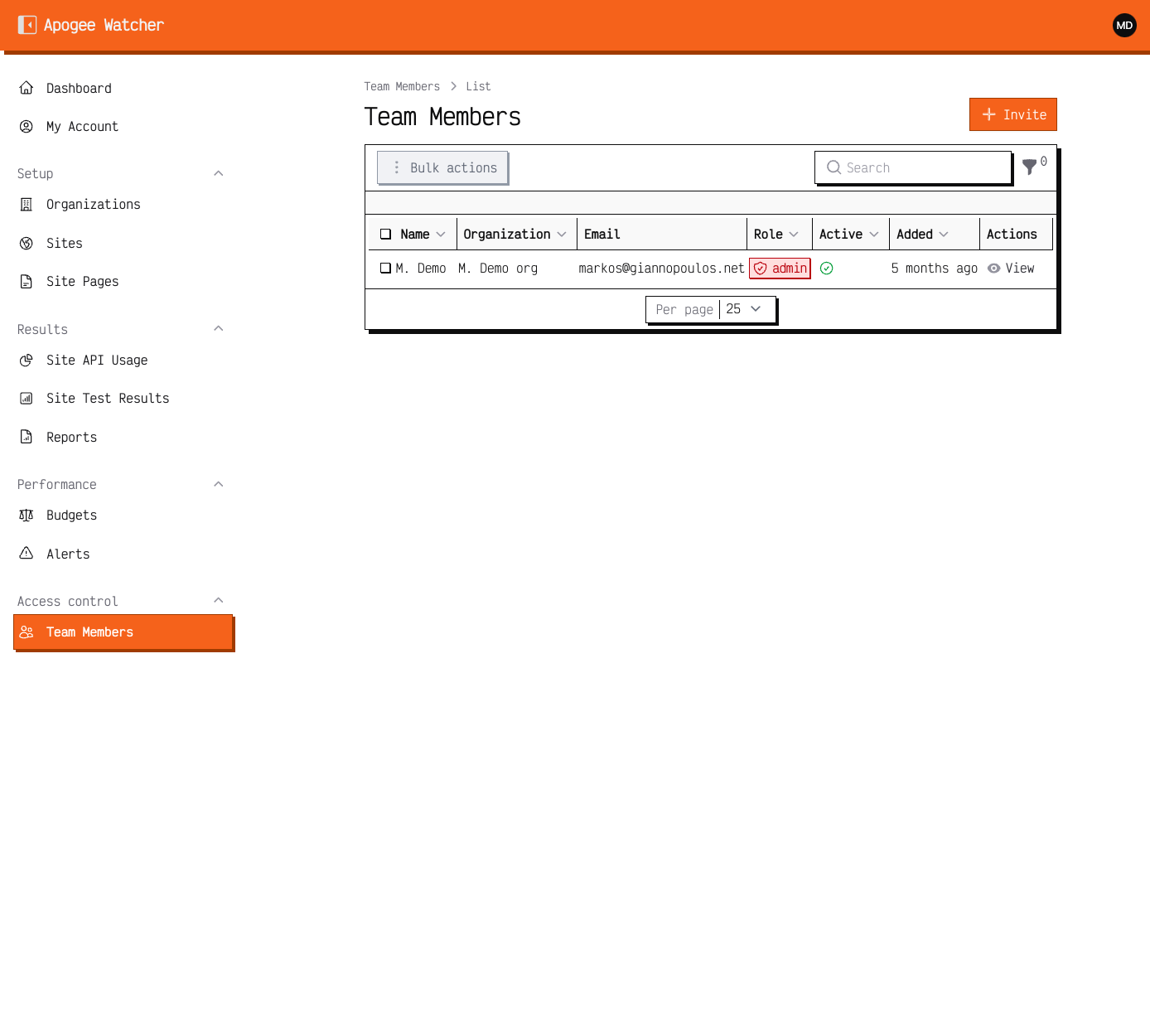 Admins see Create on Team members and can assign Admin, Manager, or Viewer.
Viewer comparison shots (Sites without Create, no Run Test) land when a Viewer capture login is available — see the screenshot capture plan.
Admin vs Manager (where it matters)
Most day-to-day monitoring work is the same for Admin and Manager. Differences appear in membership and organisation settings:
| Task | Admin | Manager |
|---|---|---|
| Edit organisation name and settings | Yes | No |
| Invite Admin or Manager | Yes | No |
| Invite Viewer | Yes | Yes |
| Edit or remove Admin / Manager members | Yes | No |
| Edit or remove Viewer members | Yes | Yes |
| Delete organisation reports | Yes | No |
| Hold paid subscription for the org | Typically yes | No |
Manager invite UI (role dropdown limited to Viewer) will be captured on Pass 2 when a Manager login is available.
Viewer workflows
Viewers are not blocked from operational data. They can:
- Open the dashboard, sites, pages, budgets, alerts, test results, and reports for their organisation
- Download report PDFs and open public share links for test results
- Review alert history and budget thresholds (without changing them)
Viewers cannot create or edit records, run manual tests, invite users, or delete test results. If you need a colleague to tune budgets or run discovery, assign Manager or Admin.
Limits that apply to every role
Role alone does not bypass plan or subscription state. These axes apply to all roles in the organisation:
| Axis | Effect |
|---|---|
| Read-only mode | Subscription ended: everyone can view history; create, edit, delete, invites, and tests are disabled. |
| Free plan | Cannot create sites or invite team members. See Free plan vs paid. |
| Plan limits | max_organizations, max_sites, max_tests_per_month, max_team_members, retention, and feature flags — see Understand plan limits. |
| Organisation switcher | Data and permissions follow the current organisation. Switch organisation in the panel before org-specific steps. |
| Feature flags | api_access, ai_insights, alert channels, and white-label may gate features even when your role would allow the action. |
An Admin on an active paid plan still cannot exceed plan quotas. A Viewer on a lapsed subscription is read-only like everyone else in that organisation.
Organisation scoping
You only see organisations where you are an active team member. Switching organisation changes which sites, team list, and usage counters appear. Permissions do not leak across workspaces.
For the product story behind multi-org setups, read Managing multiple client sites in one dashboard on the blog.
Next steps
- Confirm who should be Admin for billing and membership in each organisation.
- Invite delivery staff as Manager and clients as Viewer where appropriate.
- Review membership when a retainer ends — remove or deactivate users who no longer need access.