Required access: All roles · Any plan
Apogee Watcher is multi-tenant: one login can belong to several organisations (workspaces). Each organisation has its own sites, team, test history, and plan limits. Your role can differ per organisation — Admin in one client workspace and Viewer in another.
When you switch organisation, every list and widget in /admin refreshes to that workspace’s data.
Find the organisation switcher
- Sign in at
/admin. - Open the Dashboard.
- In the Dashboard context widget, look for Organization: (the sidebar menu uses US spelling Organizations under Setup).
If you belong to only one organisation, the switcher shows the name as static text — there is nothing to change.
If you belong to two or more, use the Organization dropdown to pick the workspace you need.
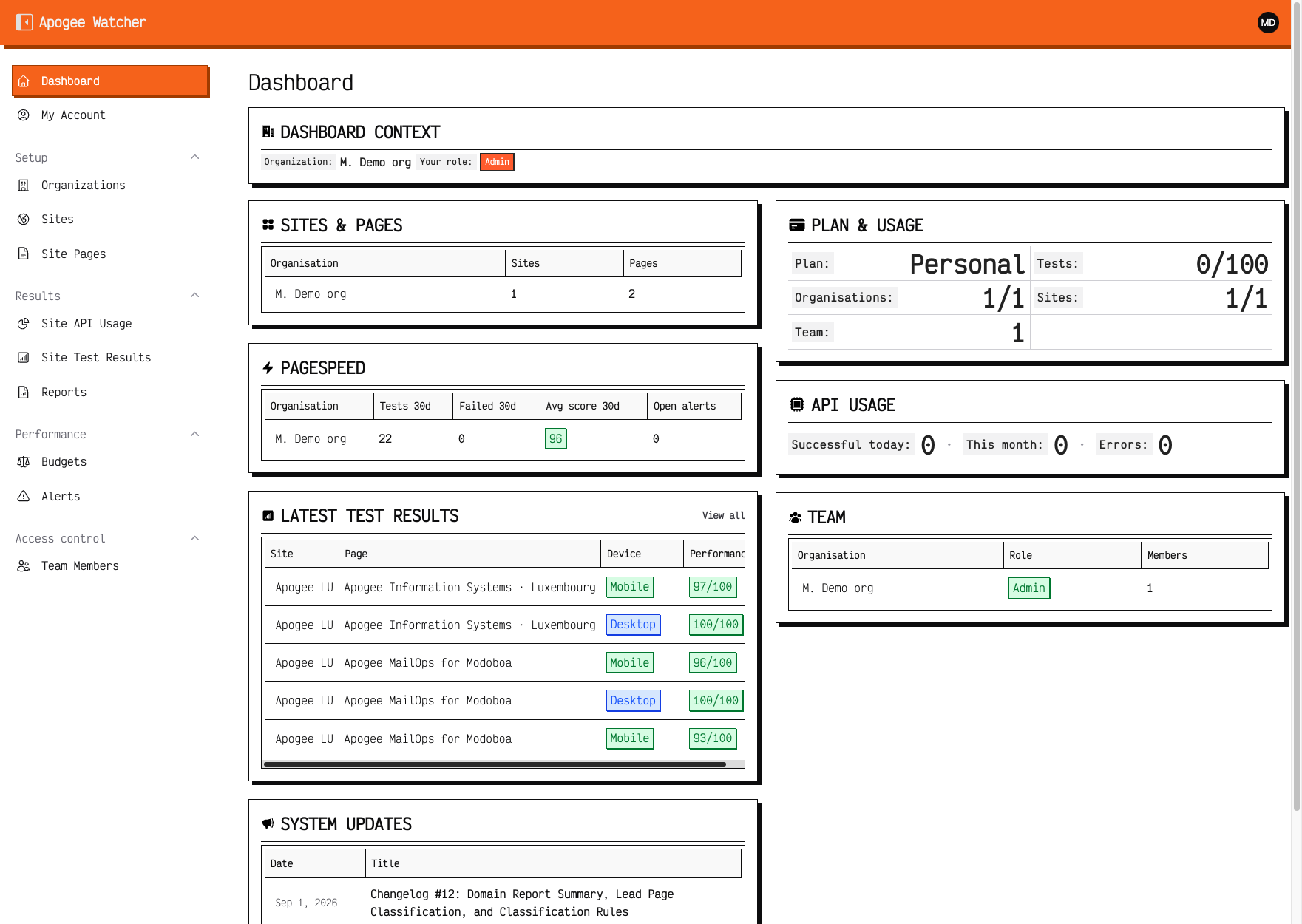 Dashboard context — switch organisation here; Your role updates after you change workspace.
Confirm your role after switching
After you select an organisation, check Your role: in the same widget (Admin, Manager, or Viewer). Permissions apply to the current organisation only.
| If your role is… | You can… |
|---|---|
| Admin | Manage organisation settings, invite any role, delete reports |
| Manager | Create sites and pages, run tests, invite Viewers |
| Viewer | View sites, results, budgets, and reports — no create or run actions |
See What each role can do for the full matrix.
What changes when you switch
- Setup lists (Organizations, Sites, Site Pages) show the selected organisation’s records
- Results (test results, reports, API usage) filter to that organisation
- Performance (budgets, alerts) scope to sites in that organisation
- Access control → Team Members lists members of that organisation only
- Plan usage widgets reflect the organisation admin’s subscription for that workspace
Switching organisation does not sign you out or change your global profile. It only changes which workspace you are working in.
Read-only mode
If the organisation admin’s subscription has ended, the workspace may enter read-only mode. You can still switch into that organisation and view data; create, edit, and run actions are disabled until billing is restored. See Read-only when subscription ends.