// Required access
Required access: No account required to open the invite · Paid plan on the inviting organisation
When someone invites you to an Apogee Watcher organisation, the email contains a link like:
/team/invitations/accept/{token}
That page shows the organisation name and the role you will receive (Admin, Manager, or Viewer). You do not need an account before opening the link, but you must sign in or register before the invite can complete.
Open the invitation link
- Click the link in the invitation email (or paste it into your browser).
- Read the organisation name and assigned role on the accept page.
- Follow the path that matches your situation below.
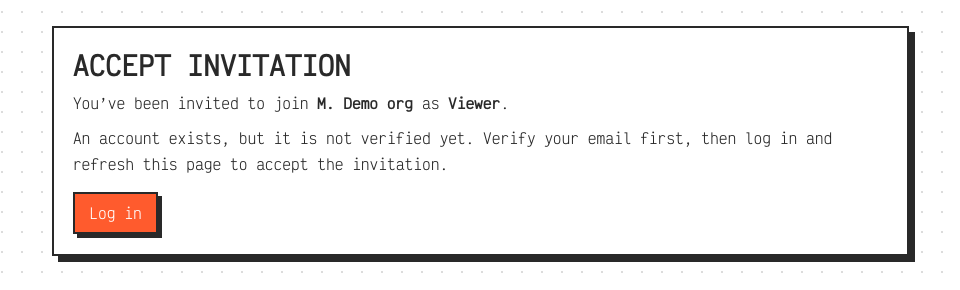 Invitation accept page — organisation name, role, and sign-in or sign-up actions.
If you already have a Watcher account
- Click Log in (or open
/admin/loginif prompted). - Sign in with the same email the invite was sent to — password, Continue with Google, or a magic login link. See Sign in.
- After login, return to the invitation URL if you are not redirected automatically.
- Confirm acceptance. You should land on
/adminwith a message that the invitation was accepted. - Open the Dashboard and use the Organization switcher if you belong to more than one workspace.
If you need a new account
- Click Create account (or open
/sign-up). - Register with the same email that received the invite (password or Continue with Google).
- Verify your email if the product asks you to.
- Return to the invitation URL and accept.
- Sign in at
/adminand confirm you see the new organisation in the dashboard context widget.
If the link does not work
| Message or behaviour | What to do |
|---|---|
| Invalid or expired invitation | Ask the inviter to send a new invite from Access control → Team Members |
| Login required | Sign in with the invited email (password, Google, or magic link), then reload the accept URL |
| Already a member | Sign in — you may already have access; check the organisation switcher |
| Wrong email on sign-up | Use the address the invite was sent to, or ask for a re-invite to your preferred email |
Invites require the inviting organisation to be on a paid plan. Free-plan workspaces cannot send team invitations. See Invite a team member.
After you join
- Read What each role can do for your permissions.
- Managers and Admins can continue with First organisation and site if sites are not set up yet.
- Viewers can open Results → Site Test Results and shared report links — no setup steps required.