Required access: Manager or Admin · Paid plan · At least one site
Scheduled monitoring runs only on URLs you list as site pages. You can add paths manually or run Discover Pages from the site view to import URLs from a sitemap or crawl.
Complete First organisation and site before this article if you do not yet have a site record.
Choose your URL scope
Start with a short priority list rather than every URL on the host:
- Homepage
- Primary conversion paths (signup, checkout, contact)
- A few template representatives (blog post, category, product detail)
Expand after alerts and quota usage stay manageable. Discovery from sitemap or crawl is the usual way to grow the page list without typing every URL.
Run Discover Pages
Discovery imports same-domain URLs from sitemap.xml (and nested sitemaps when present), then can crawl internal links when the sitemap is thin. Caps on depth and URL count prevent importing thousands of parameter variants in one pass.
- Sign in at
/adminand open Setup → Sites. - Open the site you want to populate.
- Click Discover Pages in the header actions.
- Review the modal options:
- Discovery Method — sitemap-first or crawl-assisted modes as offered
- Maximum URLs — upper bound for this run
- Maximum Crawl Depth — how far link crawling may go
- Respect robots.txt — keep enabled unless you have a documented exception
- Optional Custom Sitemap URL, Include Patterns, and Exclude Patterns
- Start discovery and wait for the progress banner to complete. Large sites may take several minutes.
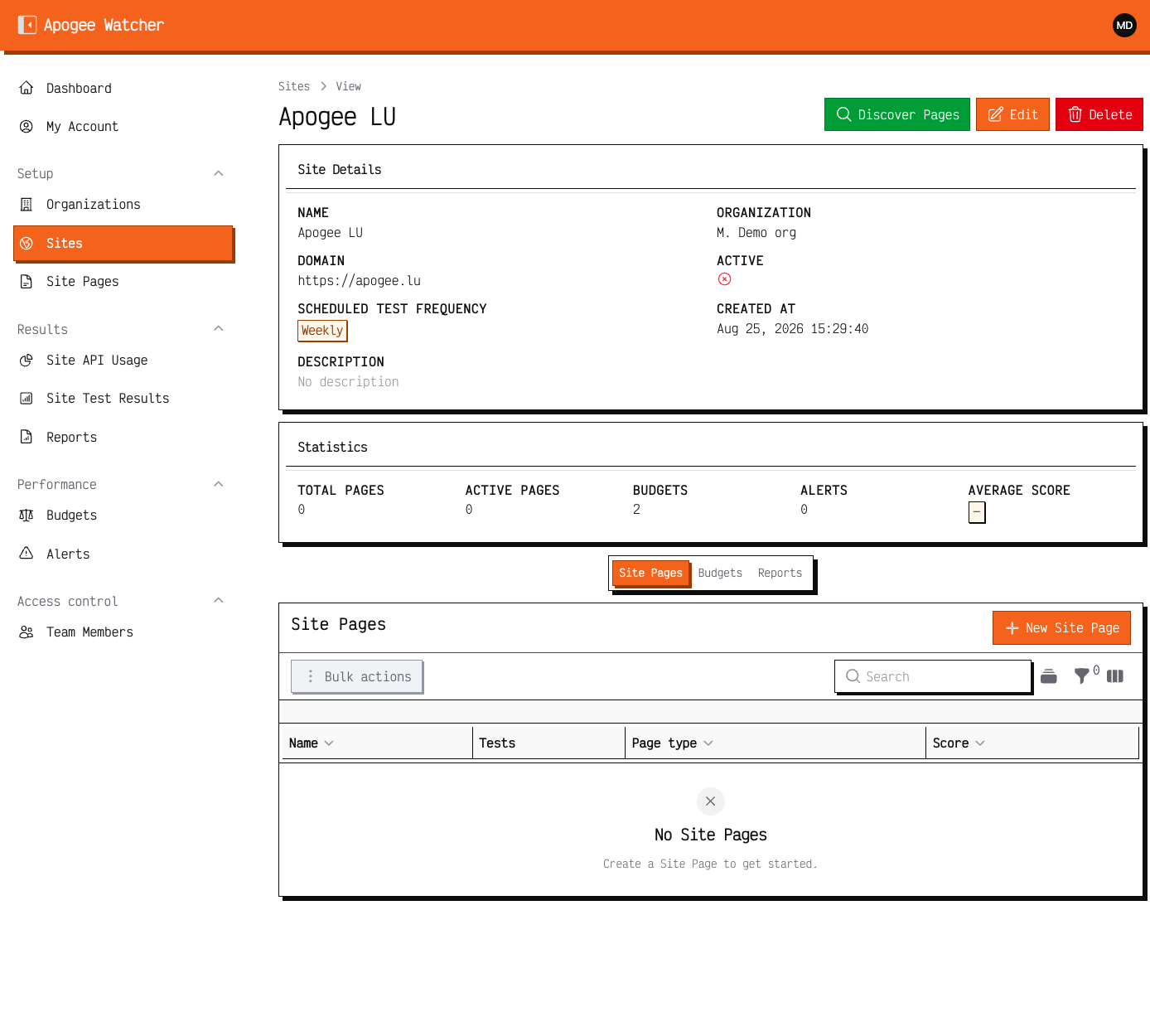 Site detail view — Discover Pages starts import from the header.
When discovery finishes, new rows appear under Site Pages for that site.
Review and tidy the page list
- Open Setup → Site Pages (or the Pages relation tab on the site view).
- Scan imported URLs and deactivate noise:
- Search facets and infinite filter combinations
- Preview or staging paths you do not want on the recurring schedule
- Admin or utility routes that are not client-facing
- Keep conversion URLs even if they sit deep in the crawl output.
Auto-discovered URLs are marked in the UI so you can filter them later.
Add pages manually
Use manual Create when discovery misses a URL:
- Campaign landers launched after the last discovery run
- Routes blocked from crawlers but public in production
- Paths absent from
sitemap.xml
- On Site Pages, click Create (or add from the site’s Pages tab).
- Enter the full URL path on the site’s host.
- Set Mobile and Desktop test toggles — enable both unless you have a written reason to skip one.
- Set Priority so revenue-critical URLs surface first in roll-ups and digests.
- Save.
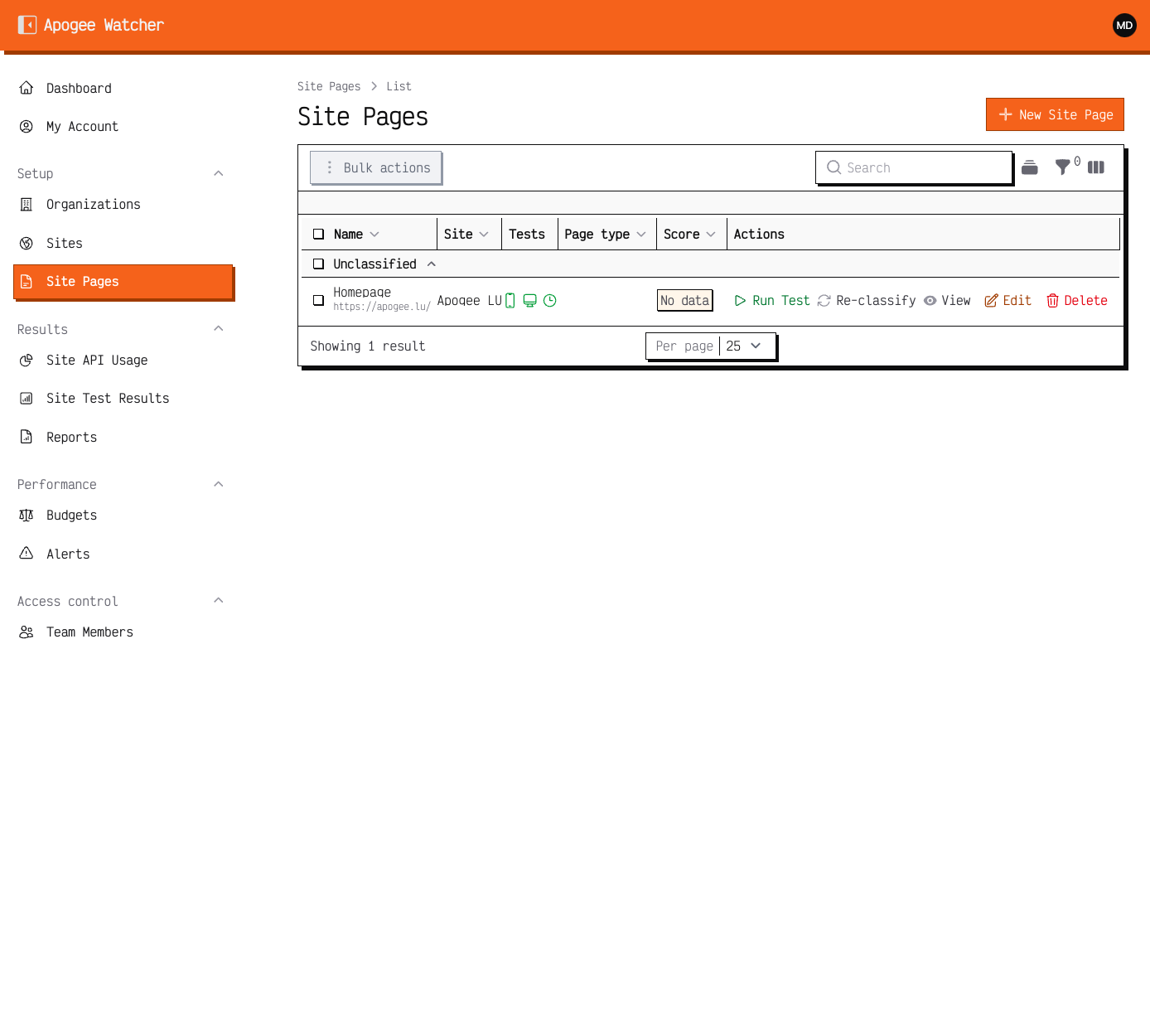 Site Pages after discovery or manual adds.
Next steps
- Run baseline tests on priority pages — Run a test and read results.
- Set performance budgets after you confirm data is flowing.
Enable mobile and desktop on public marketing sites. Sponsors and clients still ask about desktop even when analytics skew mobile.