Required access: Manager or Admin · Paid plan (site creation)
An organisation is your workspace in Apogee Watcher: team members, plan limits, sites, and shared test history. A site is one monitored property (usually one hostname). Most teams create one organisation and add a site per client or product.
If you are unsure who can perform these steps, see What each role can do.
On the Free plan you can sign in and explore, but you cannot create sites. Upgrade or start on a paid plan before this workflow. See Free plan vs paid.
Before you start
Gather:
- The production hostname you are allowed to test (for example
example.com) - A short internal name for the property (client brand or product name)
- Confirmation you are in the correct organisation if your login belongs to several workspaces
You do not need a Google Cloud project or PageSpeed Insights API key. Watcher runs tests through its own integration.
Open the customer panel
- Sign in at
/admin. - If you belong to more than one organisation, select the workspace you want from the organisation switcher in the header.
- Confirm you are Admin or Manager in that organisation.
Create or confirm your organisation
Most accounts receive an organisation when sign-up completes. You only need Create on Organisations when your plan allows another workspace (for example a separate client portfolio).
- In the sidebar, open Setup → Organizations.
- If your organisation already appears, open it to review the name and settings.
- To add another organisation (when your plan allows), click Create, enter a Name your team recognises, and save.
Only Admins can edit organisation name and settings. Managers can view the organisation but cannot change its metadata.
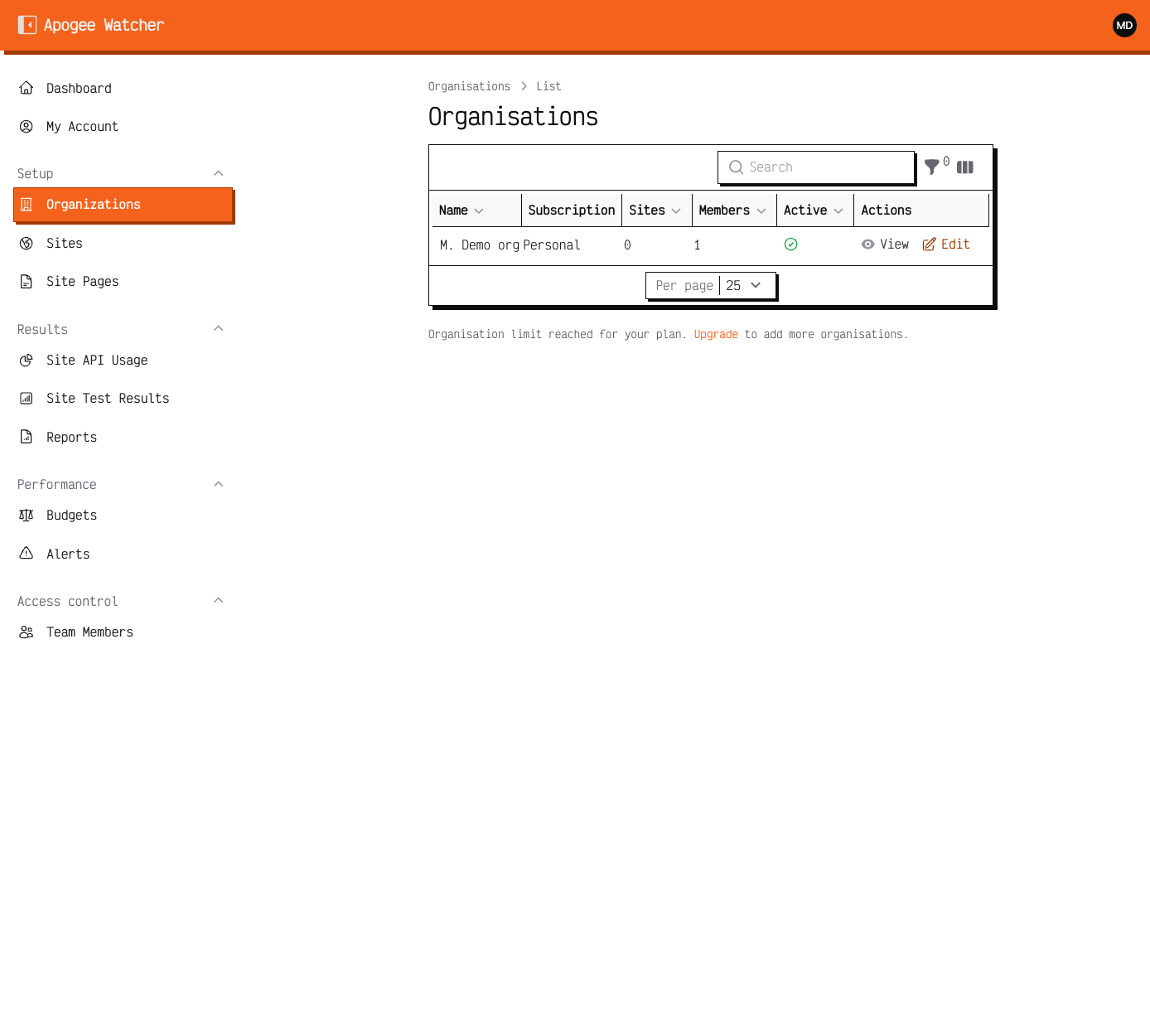 Organizations in the customer panel — each row is a workspace.
Agencies often use one organisation per client. Solo operators typically keep a single organisation and add multiple sites underneath it.
Add your first site
- In the sidebar, open Setup → Sites.
- Click Create.
- Fill in:
- Name — label your team will search for (for example
Client A — production) - URL or domain — the canonical host users load in the browser (for example
https://www.example.com)
- Name — label your team will search for (for example
- Click Create (or Save).
One site record covers every path you monitor on that host. Homepage, pricing, and checkout URLs become site pages under this site — not separate site records unless they use a different hostname.
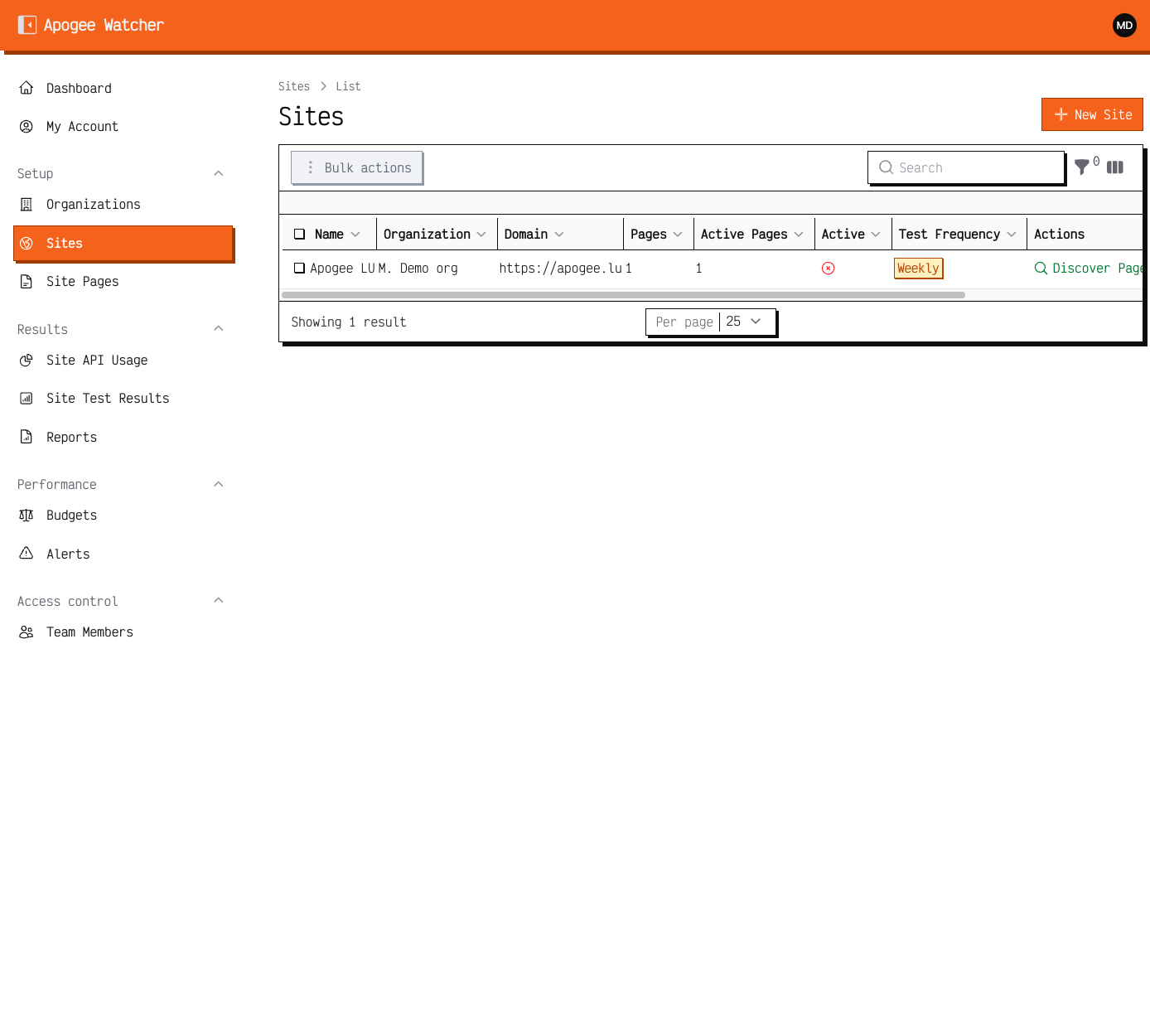 Sites list — Create is available to Admin and Manager on a paid plan.
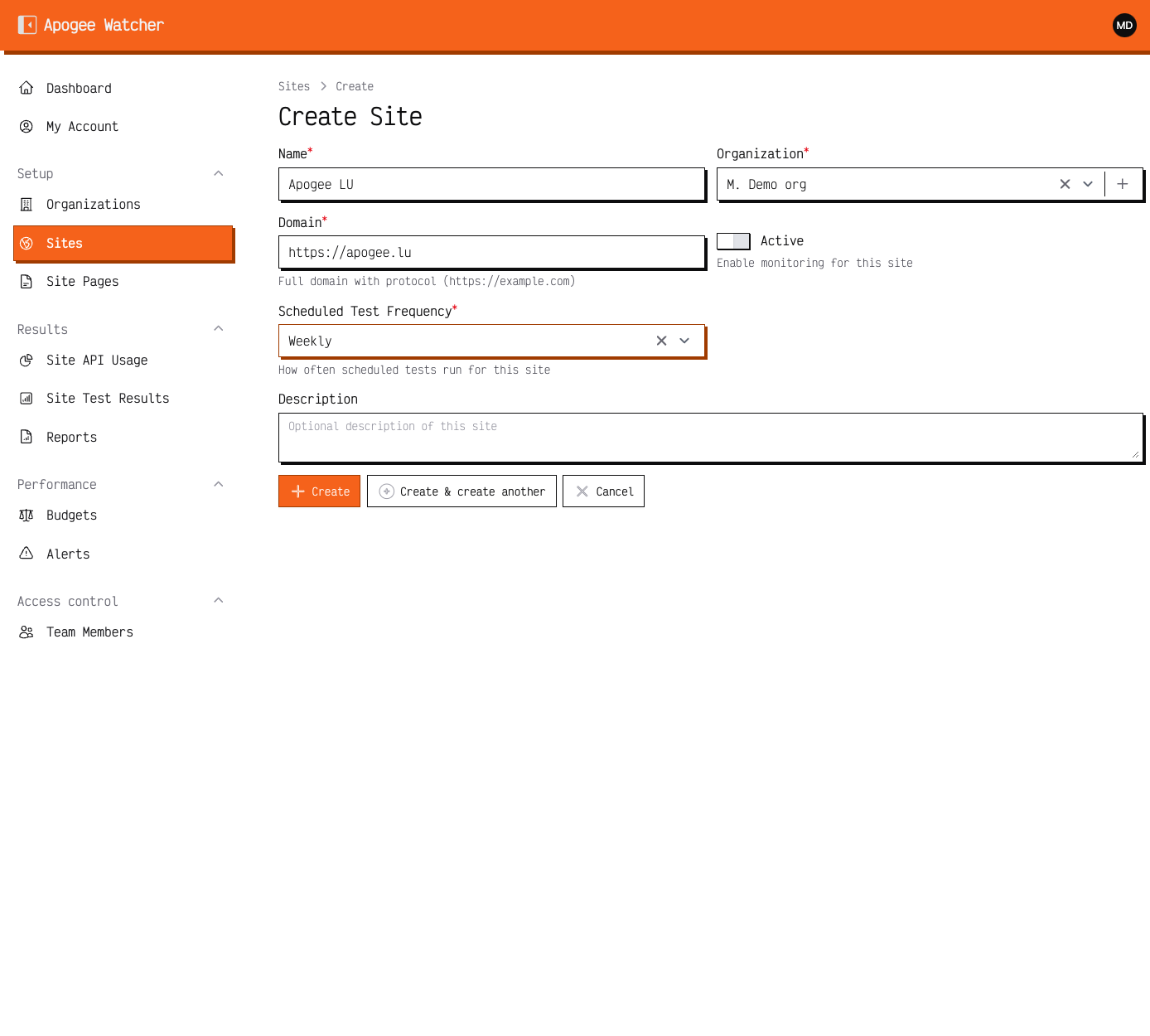 Create site form — name and URL for the property you will monitor.
After the site exists
- Open the site from Sites to view its detail page.
- Continue with Add and discover pages to build your URL list.
- Review plan usage on the dashboard or in My Account if you are close to site or monthly test limits. See Understand plan limits.