Required access: Admin only · Not available in read-only mode
Organisation settings cover the workspace display name, slug, and optional report branding used on weekly PDFs. Team membership, sites, and billing are managed elsewhere.
Open organisation settings
- Sign in at
/admin. - Confirm you are in the organisation you want to edit (use the organisation switcher on the Dashboard if needed).
- Open Setup → Organisations.
- Open the organisation row → Edit (Admin only).
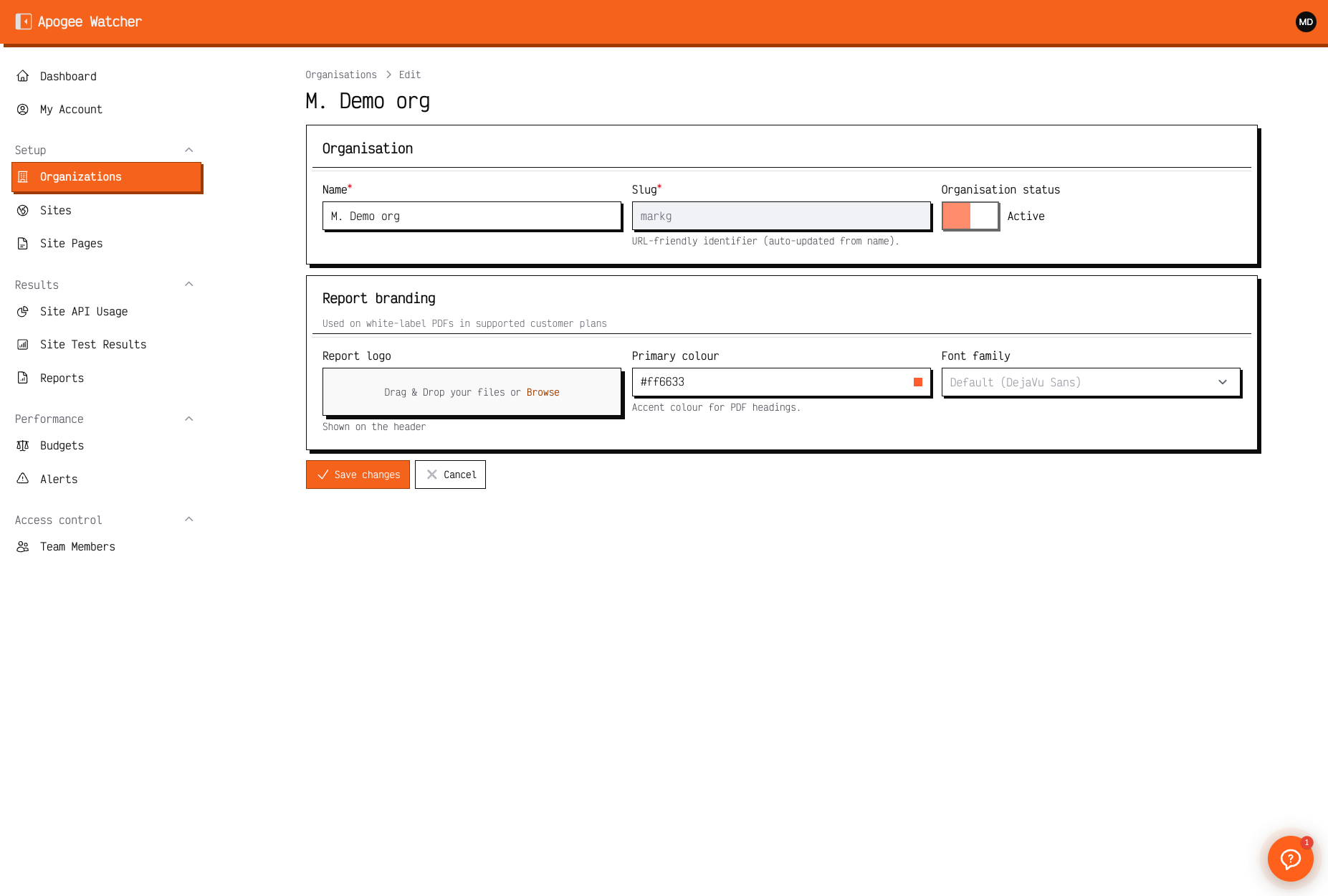 Edit organisation — name, slug, status, and report branding fields.
Fields you can change
| Field | Who can edit | Notes |
|---|---|---|
| Name | Admin | Display label in the panel and reports |
| Slug | Admin | URL-safe identifier; must stay unique (live check on edit) |
| Active | Sysadmin only | Not customer-editable |
| Report logo | Admin | Used on weekly PDFs when white-label is on |
| Primary colour | Admin | Hex accent for branded PDFs |
| Font family | Admin | Curated DomPDF-safe font list |
Report branding only appears on generated PDFs when the plan includes white_label_reports. See White-label reports. After changing branding, open a weekly report and click Regenerate PDF if you need an existing file updated.
Organisation statistics
The view page shows summary counts: sites, pages, and team members. Use these when auditing whether a client workspace is populated before handover.
Team changes happen under Access control → Team Members, not on the organisation edit form. See Invite a team member.
Who cannot edit
| Role | Organisations list | Edit settings |
|---|---|---|
| Admin | View | Yes (unless read-only) |
| Manager | View | No |
| Viewer | View | No |
In read-only mode, edit actions are disabled even for Admins. Renew the subscription first — see Read-only when subscription ends.