Required access: Admin to edit branding and confirm plan · All roles can download finished PDFs when generated
White-label reports let agencies ship weekly performance PDFs under their own brand instead of Apogee Watcher defaults. This is separate from basic PDF reports (pdf_reports) — you can have PDF export on a tier without white-label theming.
Check your plan
- Sign in at
/admin. - Open My Account.
- Read Subscriptions for White-label reports (and PDF reports).
- Compare tiers on public Pricing if you need to upgrade.
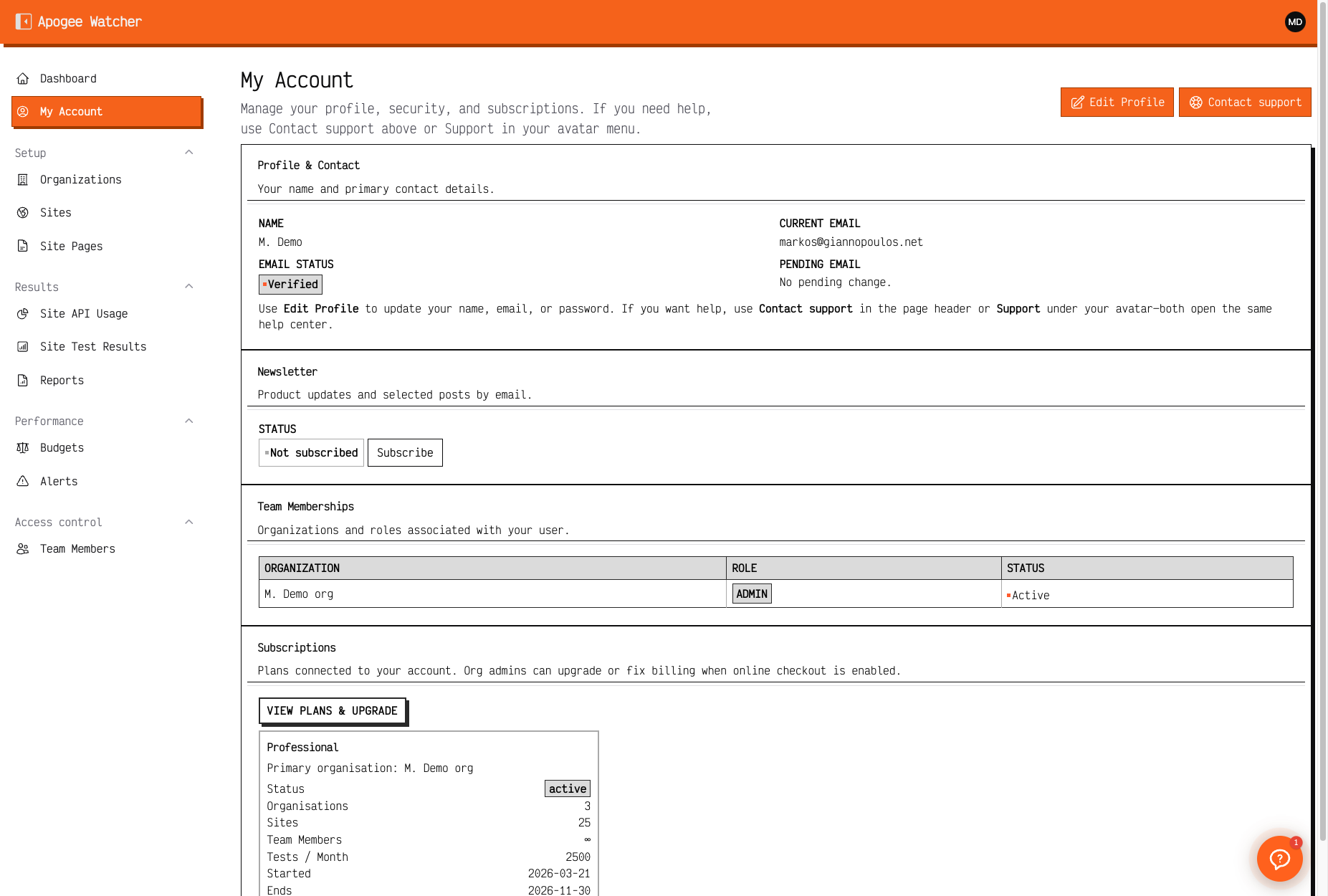 My Account — plan name and limits; white-label availability depends on tier.
Typical gating (confirm on your account):
| Tier | PDF reports | White-label |
|---|---|---|
| Free / Personal | No | No |
| Starter | Yes | No |
| Professional | Yes | Yes |
| Agency / Enterprise | Yes | Yes |
Exact flags live in product configuration — Understand plan limits.
Set branding on the organisation
When white_label_reports is enabled for the plan owner:
- Open Setup → Organisations.
- Edit the organisation.
- In the report branding section, set:
- Report logo — image used at the top of the weekly PDF (if empty, PDFs use the Apogee Watcher default logo)
- Primary colour — hex accent (e.g.
#ff6633) - Font family — choose from the curated DomPDF-safe list (Google Fonts that embed as TrueType)
- Save.
If branding fields are missing or the panel prompts for an upgrade, your plan does not include white-label yet.
When white-label is off, weekly PDFs use Apogee Watcher defaults even if you filled branding fields.
Apply branding to an existing report
- Open Results → Reports and open a weekly report.
- Confirm White-label shows On in Report Details.
- Click Regenerate PDF so the stored file picks up the current logo, colour, and font.
New scheduled or Preview runs use current branding automatically when white-label is on.
What white-label changes
| Surface | With white-label On | Without |
|---|---|---|
| Weekly PDF header | Your logo, colour, font, organisation/brand name | Watcher defaults |
| Weekly email body | Includes the insight summary; PDF attachment when pdf_reports |
Same structure; default PDF branding |
| Report view in admin | White-label: On badge | Off |
Domain report PDFs may follow related rules when PDF export is offered on a public domain report — see Domain performance reports.
Workflow for client delivery
- Set branding on the organisation (this page).
- Let the Monday weekly job run, or use Preview for the current week — Organisation reports and PDF.
- Download the PDF — Download organisation reports.
- Optionally pair with narrative from Client-Ready Core Web Vitals Report Outline.
Viewers and Managers download the same files Admins do. Only Admins edit organisation branding and plan upgrades.