// Required access
Required access: All roles can inspect results · Run Test / Repeat tests — Manager or Admin
Two different problems get lumped together as “tests not working” in Apogee Watcher:
- Failed tests — a run completed but PageSpeed Insights returned an error
- Missing tests — a URL never got a new result when you expected one
Failed tests — read the error
- Open Results → Site Test Results.
- Sort or filter recent rows with failure status.
- Open the result and read Error details / Error message.
Common PSI messages:
| Error pattern | Likely cause |
|---|---|
| NO_FCP / did not paint | Blank page, bot block, heavy redirect loop |
| TIMEOUT | Slow origin or PSI queue delay — retry later |
| 403 / 401 | URL blocks Googlebot or requires login |
| 400 Bad Request | Malformed URL or unsupported scheme |
Cross-check Results → Site API Usage on the same date — the Errors column should increment. See Site API usage and quotas.
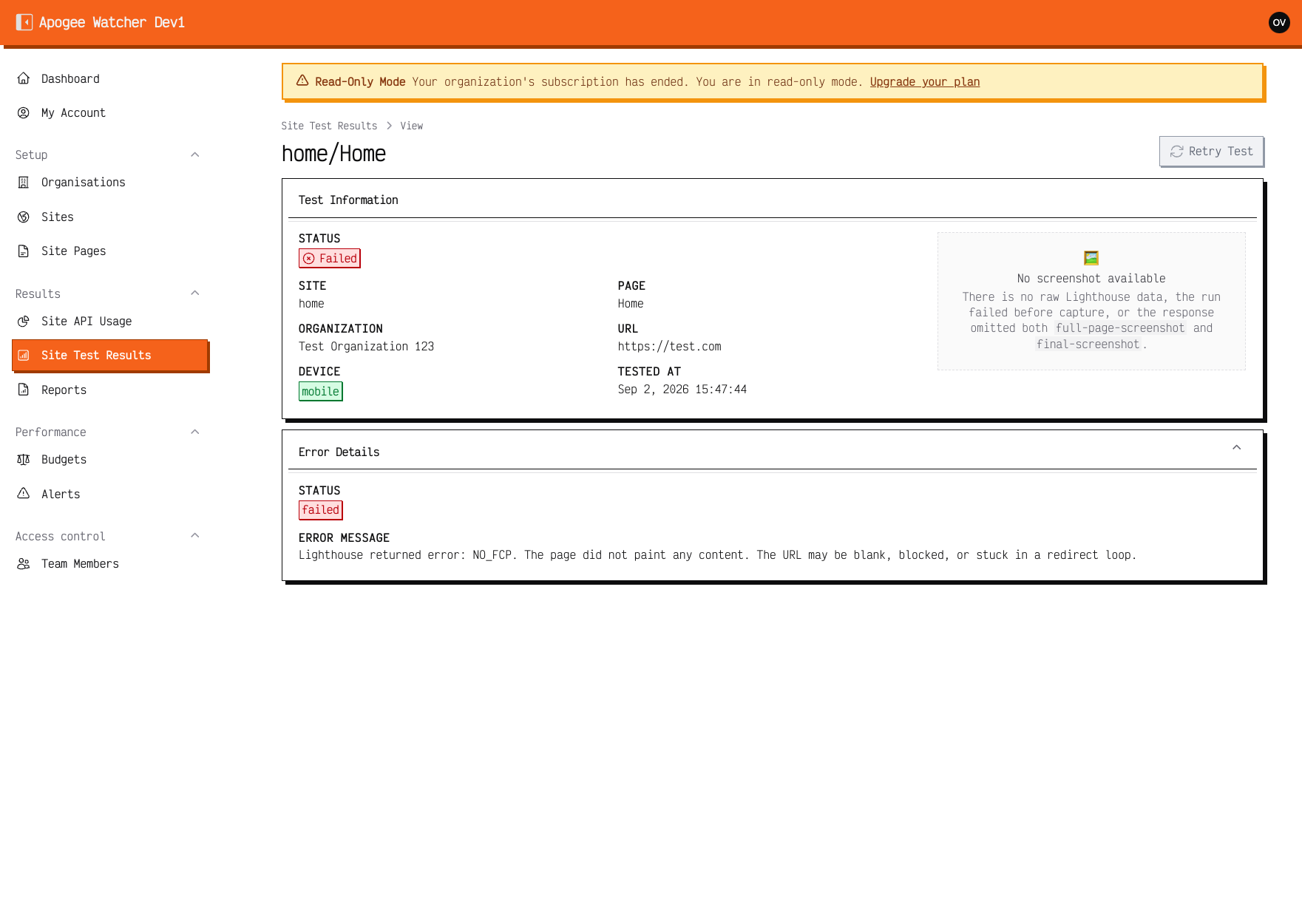 Failed result — read Error details before re-running.
Missing scheduled tests
If a URL has no fresh result:
| Check | Where |
|---|---|
| Included in scheduled tests off | Setup → Site Pages → edit page |
| Site inactive or wrong organisation context | Setup → Sites · Dashboard switcher |
| Monthly quota exhausted | My Account · Understand plan limits |
| Read-only mode | Banner on /admin — Read-only when subscription ends |
| Priority queue backlog | Many High pages due at once — Page priority and test frequency |
Retry manually
Managers and Admins — pick the path that matches what you need:
Re-run one page (all enabled devices):
- Open Setup → Site Pages.
- Use Run Test on the row (or bulk Run Tests on the site Pages tab for several URLs).
- Wait for completion.
- Open the new result under Site Test Results.
Re-run only specific page and device rows (for example failed mobile only):
- Open Results → Site Test Results, or the site’s Test results tab.
- Select the rows to retry.
- Choose bulk Repeat tests and confirm.
Viewers cannot run tests — ask a Manager to retry or share an existing public link.
When to contact support
Include:
- Organisation name and site URL
- Page URL and strategy (mobile/desktop)
- Timestamp of failed result
- Full error text from the result view