All roles can view and download · Admins can delete · Admins can Preview and regenerate PDFs
Organisation reports are portfolio roll-ups Apogee Watcher builds for your workspace. Today the product ships weekly reports on a schedule. They differ from:
- Public test result links — one URL, one test (Share a test result link)
- Domain reports — multi-page roll-up for a hostname (Domain performance reports)
You do not author report content in the panel. Final weekly rows appear when the Monday scheduler finishes; you can also Preview the incomplete current week any time.
Report types
| Type badge | Status | Typical use |
|---|---|---|
| Weekly | Live | Stand-up or client check-in for the previous Mon–Sun week |
| Monthly | Not self-serve yet | Reserved for retainer packs |
| Custom | Not self-serve yet | Reserved for ad-hoc periods |
Open Results → Reports to see organisation, type, period, scores, and Download when a PDF exists.
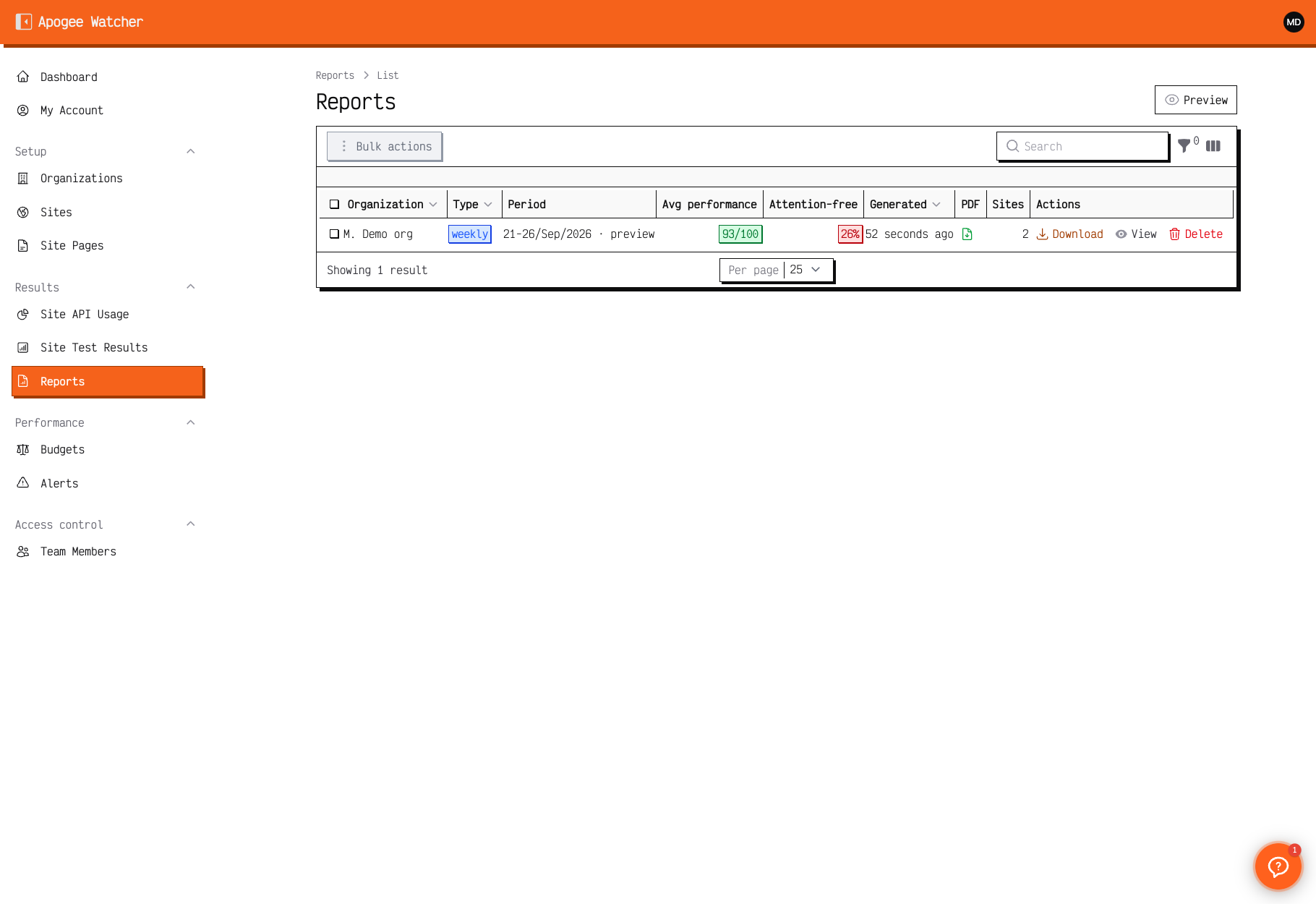 Reports list — Preview, weekly type badge, period with
 · preview, and Download when a file is present.
How weekly reports work
- Schedule: Mondays at 08:00 (app timezone). One report per active organisation that had completed lab tests in the prior calendar week (Monday–Sunday). Admins who already received a weekly report email in the last 6 days are skipped (avoids double sends around schedule changes).
- Period label: Shown as
14-20/Sep/2026(day range + month of the end date). - Email: Organisation admins with weekly report email enabled (default on) receive the weekly mail when the job finishes. Turn it off under My Account → Team Memberships, or use the unsubscribe link in the email footer (the link opens a confirm page; you must confirm before Watcher stops the mail). Reports still generate when email is off. The PDF attaches when the plan includes pdf_reports.
- Summary narrative: A short insight line (strongest drop, biggest gain, site trend, alert pressure, and similar) — not a repeat of the KPI cards below it.
- Metrics on the view page: Avg performance, attention-free %, sites/tests, alerts, API usage, per-site breakdown, and per-site movers (regressions / improvements).
Preview the current week
Use Preview on the Reports list when you need an in-progress look before Monday:
- Open Results → Reports.
- Click Preview (above the table).
- If you administer more than one organisation, choose the organisation from the dropdown.
- Watcher builds or refreshes a Monday→today report and opens it. The period shows
· preview.
Preview reports are marked in progress. They do not send email. When the final Monday job runs for a completed week, it replaces a matching preview rather than leaving a duplicate.
View report details
- Sign in at
/admin. - Open Results → Reports.
- Click a row (or finish a Preview).
- Read Report Details (organisation, type, white-label On/Off, period, generated time).
- Read Summary — insight narrative plus KPI cards — then Site breakdown and per-site Movers.
- Use Download Report when a PDF exists (
pdf_reportsplan feature). - Admins can Regenerate PDF after branding changes (see White-label reports).
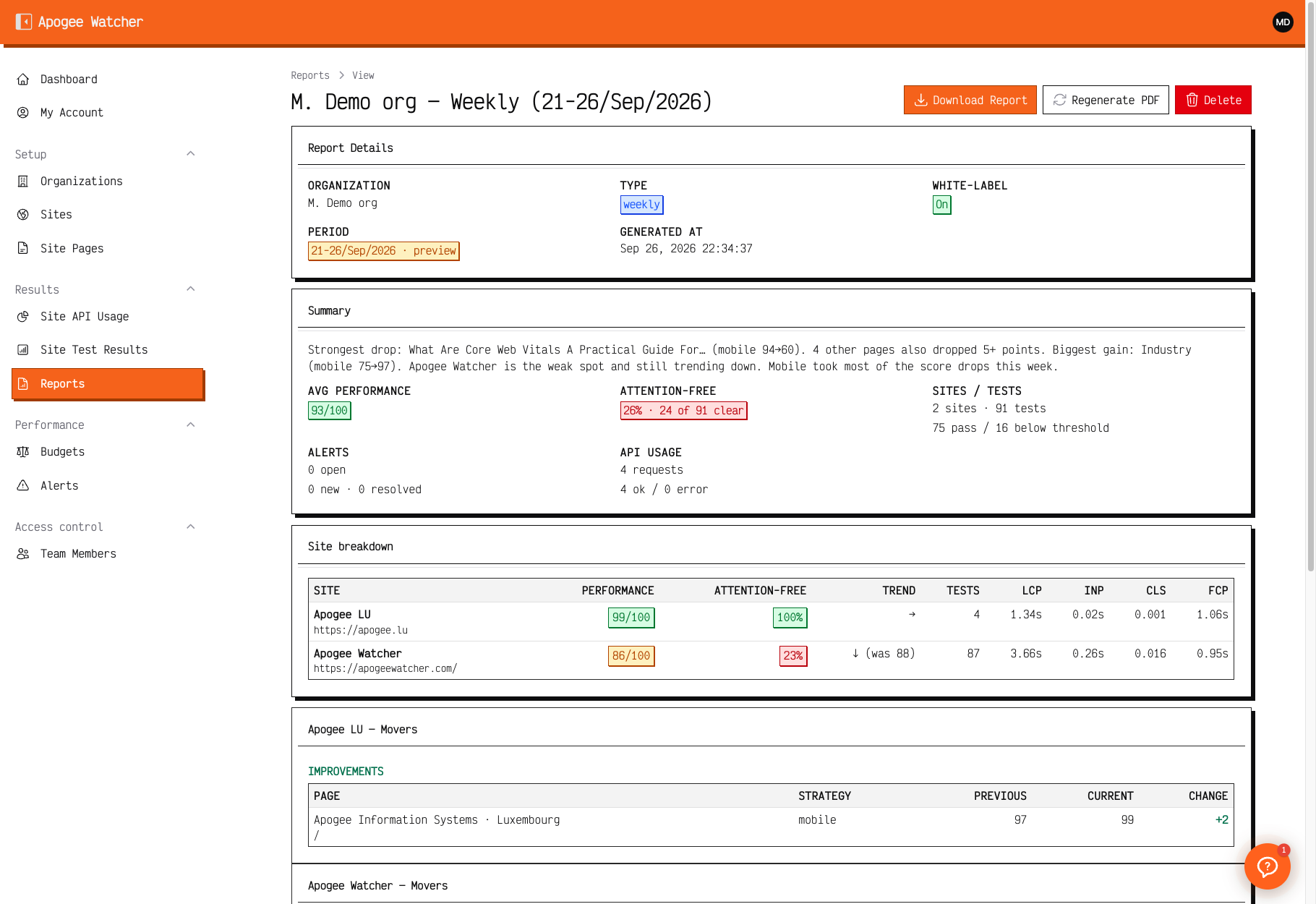 Report view — white-label status, preview period, insight summary, KPI cards, and site breakdown.
There is no in-panel report editor.
PDF and plan features
PDF packaging depends on your organisation admin’s plan pdf_reports feature (Starter and above). When the feature is off, you may still see report rows — Download appears only when a file exists.
Branded PDFs are gated separately — White-label reports.
Download workflow
For click-by-click download steps, see Download organisation reports.
Who can delete
Only Admins can remove report records. See Delete a report.
Deleting a report removes the stored file metadata — not underlying Site Test Results.