Required access: All roles can view and download · Only Admins can delete reports · Admins can Preview
Organisation reports are weekly portfolio files Watcher generates for your workspace. Use them for recurring client packs. For a one-off public URL of a single test, use Share a test result link instead.
Background on schedule, summary insights, and report types: Organisation reports and PDF.
Open Reports
- Sign in at
/admin. - Open Results → Reports.
- Find the report by organisation, period, or type.
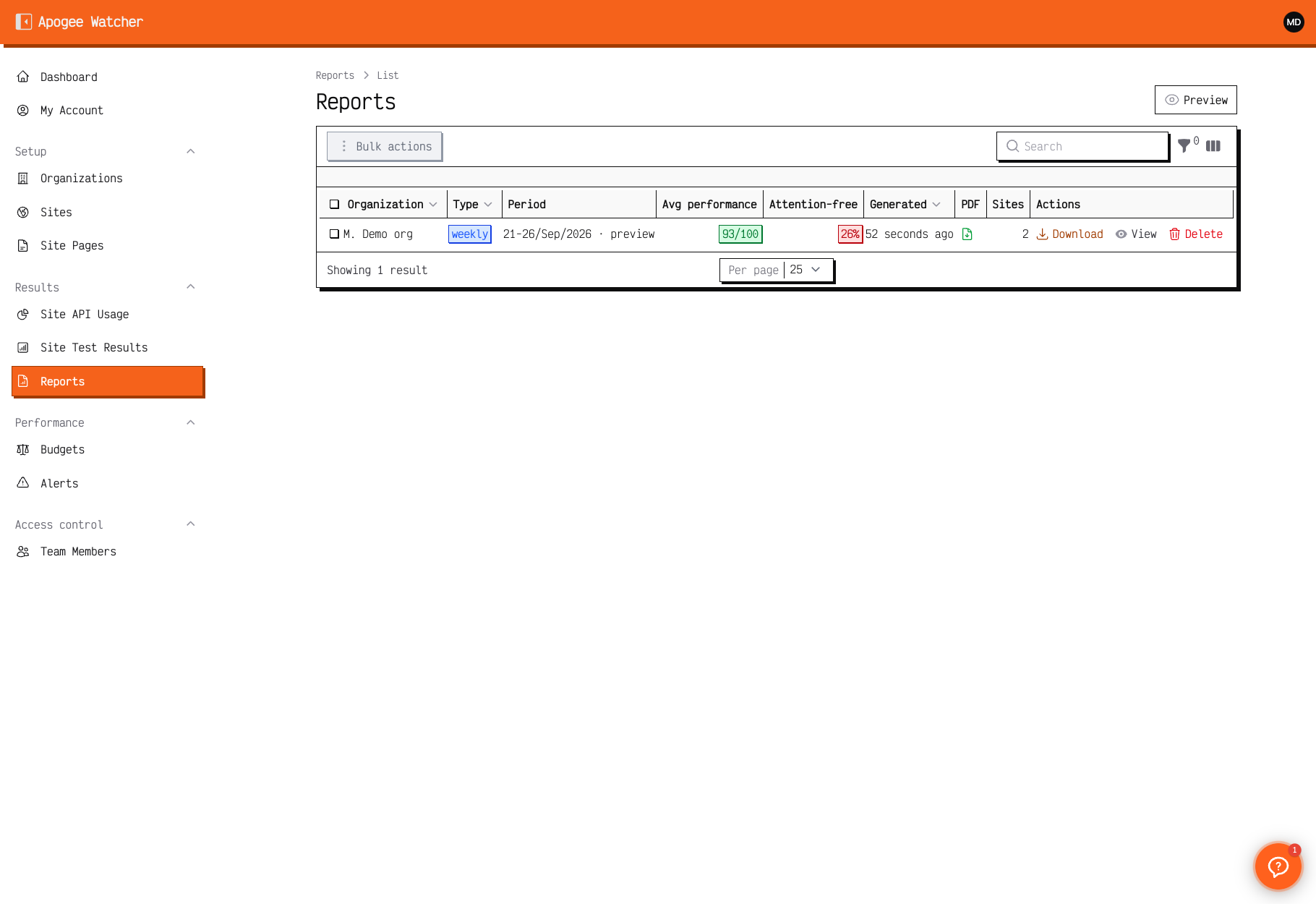 Reports — each row is a generated organisation report. Period may include
 · preview for in-progress weeks.
You do not edit report contents in Filament — rows are system-generated (or refreshed via Preview).
Preview the current week
Admins can build an incomplete week (Monday through today) without waiting for Sunday:
- On the Reports list, click Preview (above the table).
- If you manage multiple organisations, pick one from the dropdown.
- Watcher opens the preview report. Rows show a period like
21-26/Sep/2026 · preview.
Preview does not email clients. Use it for internal checks; download the PDF when your plan includes pdf_reports and tests exist for the week.
Download a PDF
- On the report row, click Download, or open the report and click Download Report.
- Save the file when the browser opens it.
If Download is missing:
- the plan may lack pdf_reports, or
- there is no completed lab data for that period yet (common on empty previews), or
- the PDF is still generating — open the report and try Regenerate PDF (Admin), or wait for the next scheduled run.
Who can delete
| Role | Download | Preview | Delete report |
|---|---|---|---|
| Viewer | Yes | No | No |
| Manager | Yes | No | No |
| Admin | Yes | Yes | Yes |
Deleting removes the stored report file record; it does not delete underlying Site Test Results.
In read-only mode (subscription ended), downloads may still work for existing files, but deletes and new generation follow plan state.
White-label and branding
When your plan includes white-label reports, weekly PDFs use your organisation branding. Set logo, primary colour, and font under Organisations → Edit, then Regenerate PDF on the report view if needed.
Details: White-label reports. Plan flags: Understand plan limits.